Ditch the Dongle: Porting Open-Source Wireless CarPlay (DiPlay) to a Nissan Qashqai / Rogue Sport (Android 9 Head Unit)
A complete teardown and debugging guide on running native wireless Apple CarPlay on a factory Nissan Qashqai / Rogue Sport head unit without an external USB dongle. Covers reverse-engineering the proprietary Nissan Bluetooth AIDL stack, resolving the kernel IPv6 routing black hole, fixing an Android 9 AudioTrack crash, and tweaking 60 FPS performance.
If you own a Nissan Qashqai (or its North American twin, the Nissan Rogue Sport, along with sibling models like the Rogue, Altima, or Sentra), you know the frustration with the factory infotainment screen.
On paper, the center console packs a capable 7-to-9-inch capacitive touchscreen powered by an ARM64 processor running Android 9. In practice, the factory NissanConnect firmware feels like a walled garden: no native Apple CarPlay on many trims, no app store, no accessible app drawer, and zero ability to sideload third-party apps out of the box.
The typical workaround is buying an $80–$120 wireless USB adapter (like a Carlinkit or Ottocast). But if you’ve lived with one of those dongles, you know the downsides:
- It hogs your only front console USB data port;
- It overheats on summer road trips, causing audio stutter and random disconnects;
- It introduces an annoying 10-to-20-second connection lag every time you start the car.
Knowing that the car’s head unit already has a quad-core/octa-core SoC, hardware Wi-Fi, and Bluetooth, I wanted to see if I could ditch the middleman entirely.
Thanks to DiPlay↗—an impressive open-source Android receiver that reverse-engineers Apple’s Wireless CarPlay protocol—the missing link is software, not hardware.
What started as a "quick weekend APK install" quickly turned into a deep dive down the rabbit hole of automotive Android reverse engineering. Between Nissan's gutted AOSP Bluetooth stack, an invisible kernel IPv6 black hole, and an Android 9 audio driver crash, here is the full postmortem and step-by-step walkthrough of how I got flawless, native, dongle-free wireless CarPlay running at 60 FPS on my factory Qashqai head unit.
The Finished Setup #
Here’s the end result running directly on the factory Nissan screen: getting in the car automatically pairs the iPhone via Bluetooth, spins up the internal Wi-Fi tunnel, and brings up the full CarPlay dashboard with Apple Music and maps—no cables, no dongles, and instant touch response.
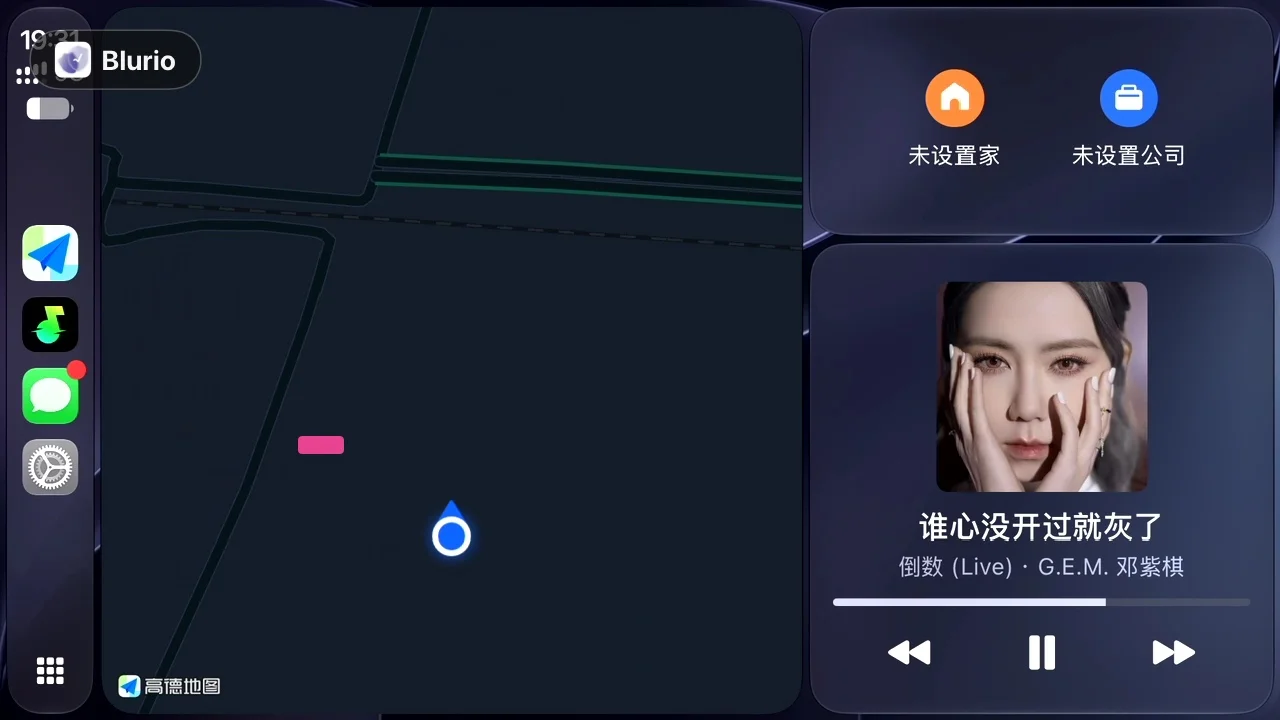
Figure 1: Full wireless CarPlay dashboard on the factory Nissan Qashqai screen (navigation split with Apple Music lossless audio)
Under the Hood: The Nissan IVI Architecture #
Poking around the head unit via ADB reveals what Nissan actually put inside:
- Vehicle Platform: Nissan Qashqai (J11/J12 generation) / Nissan Rogue Sport
- Tier 1 Head Unit OEM: Hangsheng Electronics (HSAE, internal platform P170/P660—the tier-1 supplier powering millions of Renault-Nissan-Mitsubishi Alliance vehicles worldwide)
- OS: Android 9.0 Pie (API Level 28, Linux Kernel 4.9, ARM64-v8a architecture, 4GB RAM)
- Display Resolution: 1280 × 720 (720p automotive landscape)
- Open-Source Client: DiPlay↗ standalone build
Spec-wise, decoding a 720p H.264/HEVC video stream at 60 FPS is light work for this chip. The real obstacles were Nissan’s proprietary OEM modifications layered on top of AOSP.
Here are the four major roadblocks I hit—and how to fix each one.
Hurdle 1: Nissan’s Gutted Bluetooth Stack & Custom AIDL Bridge #
The Problem #
Wireless CarPlay begins over Bluetooth: the iPhone and car negotiate credentials over an RFCOMM / SPP serial channel before handing off the high-bandwidth video feed to Wi-Fi.
When running DiPlay on the stock Nissan ROM, tapping "Connect" did nothing on the iPhone. DiPlay’s logs threw an immediate read error:
java.io.IOException: read failed, socket might closed or timeout, read ret: -1
    at android.bluetooth.BluetoothSocket.read(BluetoothSocket.java:...)
The Reverse Engineering Discovery #
Decompiling the car’s /system/framework/services.jar and vendor apps using Jadx uncovered why: Nissan completely bypassed the standard AOSP Bluetooth stack.
The standard BluetoothDevice.createRfcommSocketToServiceRecord() method was stubbed out. Instead, Nissan routes all Bluetooth traffic through two proprietary daemons:
com.hsae.bluetoothservice(handles power states and paired device registries);com.anwsdk.service(exposing an AIDL interface namedIAnwPhoneLink, which directly controls low-level hardware serial sockets).
Because DiPlay was expecting standard Android APIs, the RFCOMM handshake failed silently.
The Fix #
I wrote a custom adapter layer for DiPlay (HsaeBluetoothAdapter and HsaeRfcommStream):
- Bound directly to
com.hsae.bluetoothservicevia IPC to monitor Bluetooth state and fetch paired device MAC addresses; - Reflected into
com.anwsdk.serviceand calledANWBT_SocketConnect(GUID)to open the raw SPP pipe directly through Nissan’s proprietary HAL.
// Bridging Nissan's proprietary PhoneLink AIDL for RFCOMM transport
val linkService = IAnwPhoneLink.Stub.asInterface(serviceBinder)
val status = linkService.ANWBT_SocketConnect(APPLE_CARPLAY_UUID)
if (status == 1) {
    Log.i("CarPlay", "HSAE Bluetooth link established: stage=RunningWireless")
}
With this bridge compiled into DiPlay, the iPhone immediately picked up the car's broadcast and prompted the standard pairing dialog.
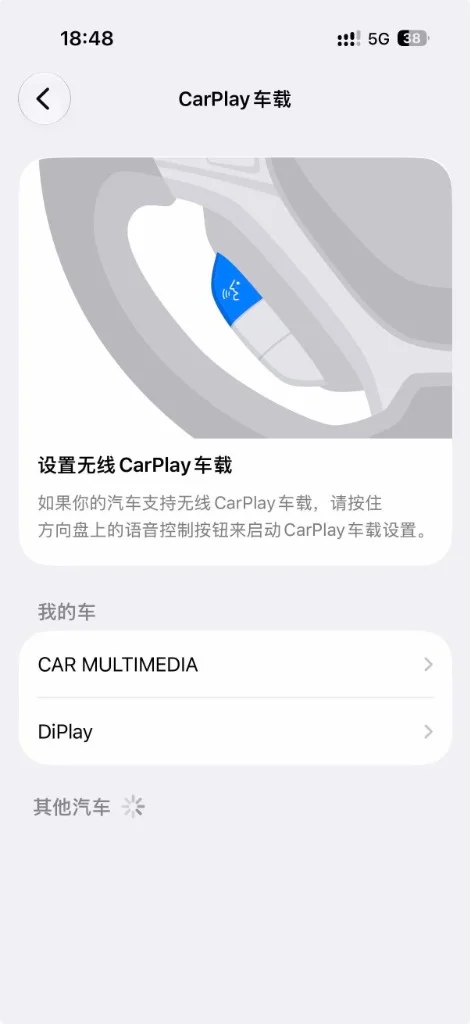
Figure 2: The iPhone successfully recognizing the head unit and initiating the wireless CarPlay handshake
Hurdle 2: Wi-Fi Connected, But CarPlay Stuck on "Searching" (The IPv6 Black Hole) #
The Problem #
With Bluetooth working, the iPhone prompted: "Use CarPlay with DiPlay?".
The phone automatically connected to the car's Wi-Fi hotspot (MY CAR_86:8B) and displayed the official CarPlay Wi-Fi banner in iOS Settings:
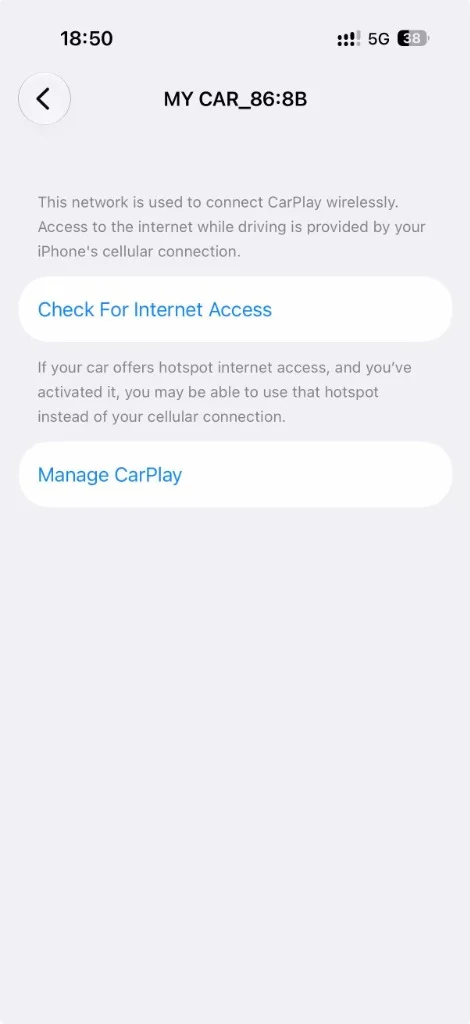
Figure 3: iPhone connected to the car's Wi-Fi hotspot
Yet the head unit screen sat on an endless loading spinner: "Searching for iPhone...", eventually timing out after 30 seconds.
The Diagnostic #
Inside an adb shell, I checked the Wi-Fi interface:
- The iPhone grabbed IPv4 address
192.168.43.193from the car’s DHCP server; - Pinging
192.168.43.193from the head unit yielded 0% packet loss and 2ms latency.
The physical network was rock solid. Why wasn't AirPlay streaming?
Looking into DiPlay’s network discovery code (WirelessHostAddress.kt), I noticed that it defaults to advertising a link-local IPv6 address (fe80::...) over Bonjour/mDNS.
I ran a quick routing check on the car:
adb shell ip -6 route
# (Zero output. The routing table was completely blank!)

adb shell ping6 -I wlan0 fe80::...
# connect: Network is unreachable
The culprit: Nissan’s stripped-down automotive Linux 4.9 kernel was compiled without link-local IPv6 routing enabled on wireless interfaces.
DiPlay was advertising an IPv6 address that the car's own kernel didn't know how to route. The iPhone was dutifully blasting AirPlay packets to an address that fell straight into a black hole.
The Fix #
In WirelessHostAddress.kt and LocalOnlyHotspotManager.kt, I patched the address selector to discard IPv6 link-local candidates and prioritize the car’s local IPv4 gateway (192.168.43.254:7000).
Rebuilt, redeployed—and the second the iPhone connected to the hotspot, the CarPlay UI sprang to life on the center screen!
Hurdle 3: Instant Crash on Music Playback (Android 9 Audio API Trap) #
With the screen active, I could pan Apple Maps smoothly. But the moment I hit "Play" on a song, the entire app crashed instantly to the home screen and entered a reboot loop.
No music, no navigation audio. Just an instant hard crash.
The Stack Trace #
Grabbing adb logcat right at the crash revealed the smoking gun:
FATAL EXCEPTION: DefaultDispatcher-worker-1
Process: com.shihab.diplay, PID: 3412
java.lang.NoSuchMethodError: No virtual method getAudioAttributes()Landroid/media/AudioAttributes; in class Landroid/media/AudioTrack;
    at com.shilapi.xcertplay.media.AudioRenderer.createTrack(AndroidMediaSink.kt:958)
    at com.shilapi.xcertplay.media.AudioRenderer.start(AndroidMediaSink.kt:890)
The Root Cause #
A quick check of the official Android API reference confirmed it:
AudioTrack.getAudioAttributes()was introduced in Android 10 (API Level 29).- The Nissan Qashqai / Rogue Sport runs Android 9 (API Level 28).
- DiPlay’s audio sink code (
AndroidMediaSink.kt) assumed modern Android 10+ devices and queriedbuilt.audioAttributesdirectly on theAudioTrackinstance, triggering an uncaught runtime exception.
The Patch #
In AndroidMediaSink.kt:958, I added an API-level guard and built a fallback AudioAttributes configuration for Android 9:
// AndroidMediaSink.kt - Android 9 / API 28 compatibility fix
val trackAttributes = if (Build.VERSION.SDK_INT >= Build.VERSION_CODES.Q) {
    built.audioAttributes
} else {
    // Graceful fallback for Android 9 IVI units
    AudioAttributes.Builder()
        .setUsage(AudioAttributes.USAGE_MEDIA)
        .setContentType(AudioAttributes.CONTENT_TYPE_MUSIC)
        .build()
}
Once recompiled and pushed to the car, audio worked flawlessly. Music streamed crystal-clear over the car's speakers, and audio ducking (lowering music volume during navigation prompts) kicked in seamlessly.
Hurdle 4: Bypassing the Factory Launcher's App Whitelist #
Even with CarPlay running perfectly, there was an everyday usability problem:
The factory Nissan launcher does not display sideloaded third-party apps.
You can't bring a laptop to the car every morning just to run adb shell am start com.shihab.diplay.
The OEM Launcher Lockout #
Decompiling /system/app/Launcher/Launcher.apk revealed that Nissan’s stock home screen does not query the package manager for installed apps. It strictly renders a hardcoded list from config_with_dvr.json and white.txt (only showing factory Radio, Settings, Reverse Camera, and Drive Recorder).
The Solution: DUDU Launcher Pro #
Modifying the /system partition on modern automotive units is risky. The cleanest solution was installing a dedicated automotive launcher that runs on top of the factory system.
I installed DUDU Launcher Pro (com.dudu.autoui):
- Full App Drawer: It automatically scans and displays all sideloaded apps, including DiPlay and offline maps;
- Custom Dock: DiPlay can be pinned directly to the bottom persistent dock bar for one-tap launching;
- Seamless OEM Access: It includes a shortcut back to the original Nissan launcher, so factory vehicle settings and radio are never lost.
Performance Tuning: Wireless Tweaks vs. Wired USB #
Once the setup was running daily, I noticed slight micro-stutter when scrolling fast through map tiles. Here’s what I discovered under the hood, and how to dial in the best experience.
1. The 30 FPS vs. 60 FPS Switch #
In DiPlay's settings (AirPlayPersistence.kt), the default frame rate is capped at 30 FPS for low-power compatibility.
- Going into DiPlay’s Display & Performance settings and switching the frame rate to 60 FPS made an enormous difference. The animations, UI pans, and map transitions became buttery smooth.
2. HEVC (H.265) Encoding #
Most automotive Wi-Fi chips operate on the crowded 2.4 GHz band, where Bluetooth and Wi-Fi share the same antenna and interfere with each other.
- Enabling Efficient Video (HEVC) in DiPlay cuts the streaming bandwidth by nearly 40–50%, significantly reducing packet drops and lag spikes on 2.4 GHz networks.
3. The Wired USB Option #
DiPlay also natively supports Apple's wired USB NCM / iAP2 protocol. If your Qashqai has the factory center-console USB data port hooked up to the head unit:
- Plugging in a Lightning or USB-C cable will prompt an Android dialog: "Allow DiPlay to access this USB device?" Check Always Allow.
- Tap "Trust This Computer" on your iPhone.
| Metric | Tuned Wireless (60 FPS + HEVC) | Wired USB Direct |
|---|---|---|
| Touch Latency | ~40–60 ms (slight wireless latency) | < 5 ms (near zero, razor-sharp) |
| RF Interference | Minor jitter near cell towers | None (hardware bus transfer) |
| Battery Impact | Moderate phone heating over time | Continuously charges the phone |
| Convenience | Unbeatable (phone stays in pocket) | Requires plugging in a cable |
My takeaway: For daily 15-to-30-minute city commutes, wireless 60 FPS is the sweet spot—just get in the car and drive. For cross-country road trips, plugging into wired USB gives zero-latency responsiveness and a fully charged phone at your destination.
Conclusion & Resources #
By putting in the time to reverse-engineer Nissan’s custom services and patching DiPlay's Android 9 edge cases, I managed to:
- Save $100+ on an aftermarket dongle;
- Keep the center console completely cable- and clutter-free;
- Unlock native wireless and wired CarPlay on a previously locked-down factory head unit.
If you drive a Nissan Qashqai, Rogue Sport, or any other vehicle powered by the HSAE Android 9 platform, this exact roadmap should get you up and running.
There is something deeply satisfying about taking a locked-down, OEM infotainment system and turning it into a fast, modern setup. Hope this guide saves you hours of troubleshooting—happy hacking!